Apps are a big part of daily Android use, so when they suddenly stop opening, it can feel frustrating and confusing. You tap the app, it shows the logo, and then nothing happens. Or worse, it crashes instantly.
If you are dealing with apps not opening on Android, you are not alone. This is a very common issue across different Android phones and versions. The good news is that most app opening problems can be fixed without visiting a repair shop or resetting your phone.
In this guide, you will learn why apps fail to open on Android and how to fix the issue step by step. Each solution is written in simple language, so even beginners can follow along easily.
Why Apps Are Not Opening on Android
Before jumping into fixes, it helps to understand what causes this issue. Android apps rely on system resources, permissions, and background services. When something breaks in that chain, apps may stop working.
Here are the most common reasons apps do not open on Android devices:
5.1 Corrupted App Cache or Data
Temporary files help apps load faster, but corrupted cache data can prevent apps from opening properly.
5.2 Outdated Apps
Older app versions may not work correctly after Android system updates.
5.3 Android System Bugs
System updates can sometimes introduce bugs that affect multiple apps.
5.4 Insufficient Storage Space
Low internal storage can stop apps from launching or cause them to crash.
5.5 Battery Optimization Restrictions
Aggressive battery-saving features may block apps from running.
5.6 Permission Issues
If an app lacks required permissions, it may fail during startup.
5.7 Google Play Services Problems
Many apps depend on Google Play Services. If it is not working properly, multiple apps may stop opening.
Understanding these causes helps you apply the right fix instead of guessing.
Step-by-Step Solutions to Fix Apps Not Opening on Android
Follow these solutions in order. You do not need to try all of them. Often, one or two fixes are enough.
6.1 Restart Your Android Phone (Always Start Here)
A simple restart clears temporary system glitches and frees up memory.
Steps:
- Press and hold the Power button.
- Tap Restart.
- Wait for your phone to reboot.
- Try opening the app again.
This may sound basic, but it fixes many cases of apps not opening on Android.
6.2 Clear App Cache (Safe and Recommended)
Clearing the cache removes temporary files without deleting personal data.
Steps:
- Open Settings.
- Go to Apps or Apps & notifications.
- Select the app that will not open.
- Tap Storage.
- Tap Clear cache.
- Reopen the app.
Do not tap “Clear data” yet. Start with cache only.
6.3 Force Stop the App
If an app is stuck in the background, force-stopping it can reset its state.
Steps:
- Go to Settings.
- Open Apps.
- Select the affected app.
- Tap Force stop.
- Confirm and reopen the app.
This is especially helpful if the app freezes on launch.
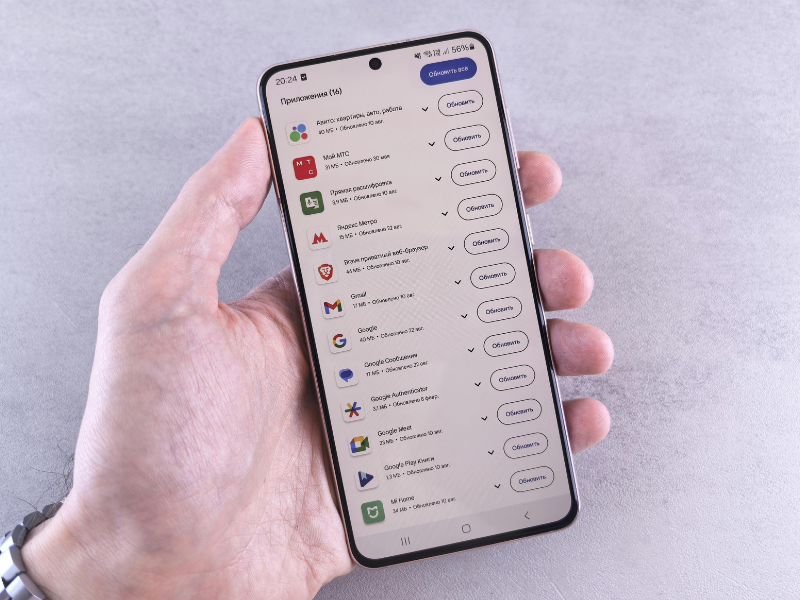
6.4 Update the App from the Google Play Store
Outdated apps are a major reason apps stop opening after system updates.
Steps:
- Open the Google Play Store.
- Search for the app.
- Tap Update if available.
- Open the app again.
Also check for updates under “Manage apps and device”.
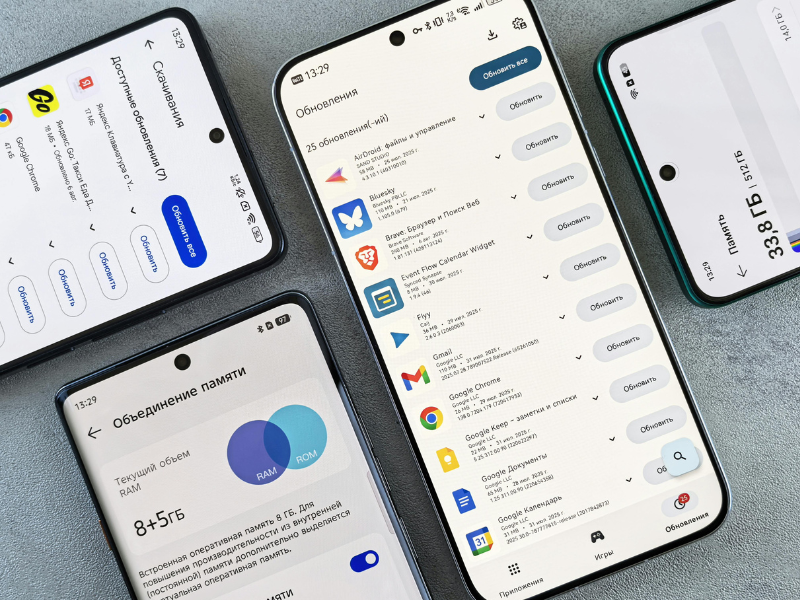
6.5 Check for Android System Updates
System bugs can cause multiple apps not to open on Android at the same time.
Steps:
- Open Settings.
- Scroll to Software update or System update.
- Download and install updates if available.
- Restart your phone.
Manufacturers often fix app compatibility bugs in updates.
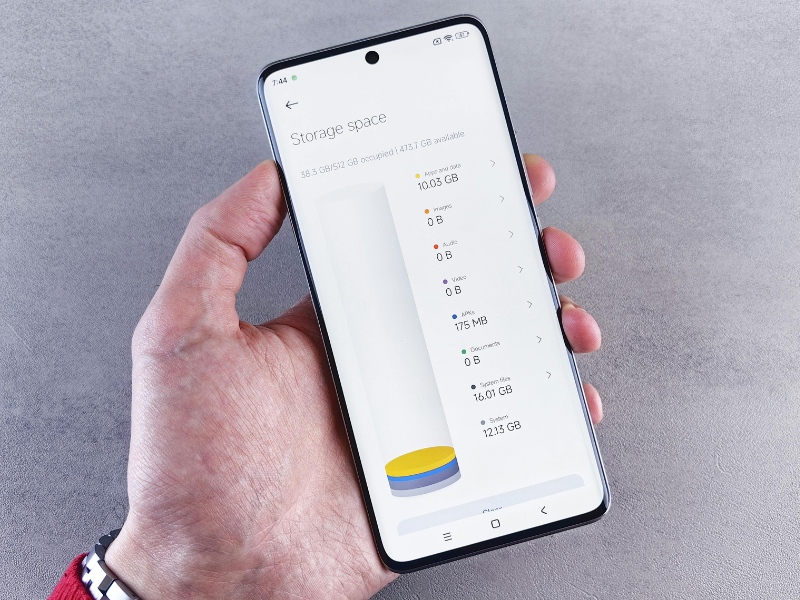
6.6 Free Up Storage Space
Android needs free space to run apps smoothly.
Steps:
- Open Settings.
- Go to Storage.
- Delete unused apps, videos, or large files.
- Clear junk files if available.
- Restart your phone.
Aim to keep at least 1–2 GB of free space.
6.7 Check App Permissions
Some apps will not open if critical permissions are denied.
Steps:
- Go to Settings.
- Open Apps.
- Select the app.
- Tap Permissions.
- Allow required permissions.
- Reopen the app.
Be especially careful with camera, storage, and location permissions.
6.8 Disable Battery Optimization for the App
Battery optimization can prevent apps from running properly.
Steps:
- Open Settings.
- Go to Battery.
- Open App battery usage or Battery optimization.
- Select the affected app.
- Choose “Unrestricted” or “Don’t optimize”.
This is important for messaging, background, or syncing apps.
6.9 Clear Google Play Services Cache
If many apps are not opening on Android, Google Play Services could be the cause.
Steps:
- Open Settings.
- Go to Apps.
- Find Google Play Services.
- Tap Storage.
- Clear cache.
- Restart your phone.
Do not clear data unless necessary.
6.10 Reinstall the Problematic App (Last App-Level Fix)
If nothing works, reinstalling the app may help.
Steps:
- Uninstall the app.
- Restart your phone.
- Reinstall the app from the Play Store.
- Sign in again if needed.
This removes corrupted app files completely.
7. Advanced and Optional Fixes (Use Carefully)
7.1 Safe Mode Test
Safe Mode disables third-party apps temporarily.
If the app works in Safe Mode, another installed app is causing the problem.
7.2 Reset App Preferences
This resets disabled apps and permissions without deleting data.
Path:
Settings > Apps > Reset app preferences
7.3 Factory Reset (Last Resort)
Only use this if nothing else works, and always back up data first.
8. Common Mistakes to Avoid
- Clearing app data before trying the cache
- Ignoring system updates
- Installing apps from unknown sources
- Using aggressive battery saver apps
- Running Android with almost no free storage
Avoiding these mistakes helps prevent apps from not opening on Android in the future.
Frequently Asked Questions (FAQ)
Q1: Why are all my apps not opening on Android?
This usually points to system issues, low storage, or Google Play Services problems.
Q2: Will clearing the cache delete my data?
No. Clearing the cache is safe and does not remove personal data.
Q3: Can Android updates cause apps to stop opening?
Yes. Outdated apps may not work properly after system updates.
Q4: Is reinstalling apps safe?
Yes, as long as you reinstall from the official Play Store.
Q5: Do I need to factory reset my phone?
Only as a last resort after trying all other fixes.
Conclusion
When apps suddenly stop opening, it can disrupt your entire Android experience. Thankfully, most cases of apps not opening on Android are caused by simple issues like cache problems, outdated apps, or storage limits.
Start with basic fixes like restarting your phone and clearing cache. Move step by step and avoid jumping straight to extreme solutions. With patience and the right approach, your apps should be running smoothly again.
If the issue keeps returning, keep your apps and system updated and regularly clean up storage. Small habits like these prevent bigger problems later.