
Smartphones have become the center of our digital lives. From banking and emails to social media and work apps, everything now lives on our Android devices. That convenience also makes phones a bigger target for online threats. Following the right cybersecurity tips in 2026 is no longer optional. It is essential if you want to protect your digital life online and keep your personal data safe.
In 2026, cyber risks are more advanced, but Android also offers stronger tools to stay protected. The key is knowing what to enable, what to avoid, and how to use your phone safely every day.
Why Cyber Security Problems Happen on Android Devices
Android is flexible and powerful, but that flexibility can also create risks if users are not careful. Most security issues do not happen because Android is unsafe. They happen because of everyday habits.
Common reasons Android users face security risks
- Installing apps from unknown sources
- Ignoring app permissions
- Using weak or repeated passwords
- Connecting to public Wi-Fi without protection
- Delaying system updates
Attackers target users, not devices. Once a phone is misused, personal data like photos, contacts, messages, and even bank details can be exposed.

Essential Cyber Security Tips for Android in 2026
1. Keep Your Android System Updated
System updates are not just about new features. They fix security holes that attackers already know about.
Step-by-step
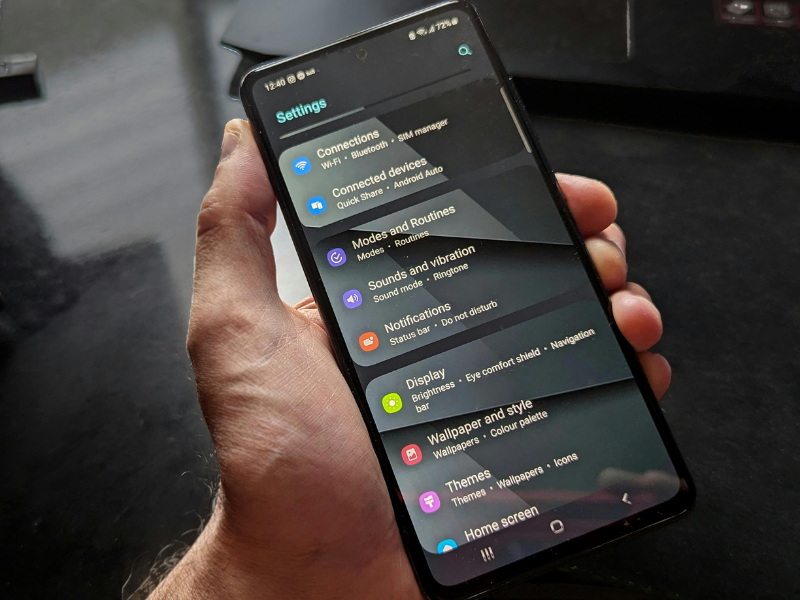
- Open Settings
- Go to Security & privacy
- Tap Updates
- Enable automatic updates
Common mistake: Delaying updates because of storage or battery concerns.

2. Use Strong Screen Lock and Biometric Protection
Your lock screen is your first defense.
Best practices
- Use a strong PIN or password
- Enable fingerprint or face unlock
- Set auto-lock to 30 seconds or less
Avoid patterns that are easy to guess.
3. Review App Permissions Regularly
Apps often request more access than needed.
How to check permissions
- Open Settings
- Tap Privacy
- Select Permission Manager
- Review camera, mic, and location access
Remove permissions that do not make sense.
4. Download Apps Only from Trusted Sources
Sideloading apps increases risk.
Safer habits
- Use the official app store
- Avoid modified or cracked apps
- Read reviews and update history
Troubleshooting tip: If your phone behaves strangely after installing an app, uninstall it immediately.
5. Secure Your Internet Connection
Public Wi-Fi is convenient but risky.
Online security tips
- Avoid logging into sensitive accounts on public Wi-Fi
- Turn off auto-connect to open networks
- Use mobile data for banking apps
Common mistake: Leaving Wi-Fi on all the time.
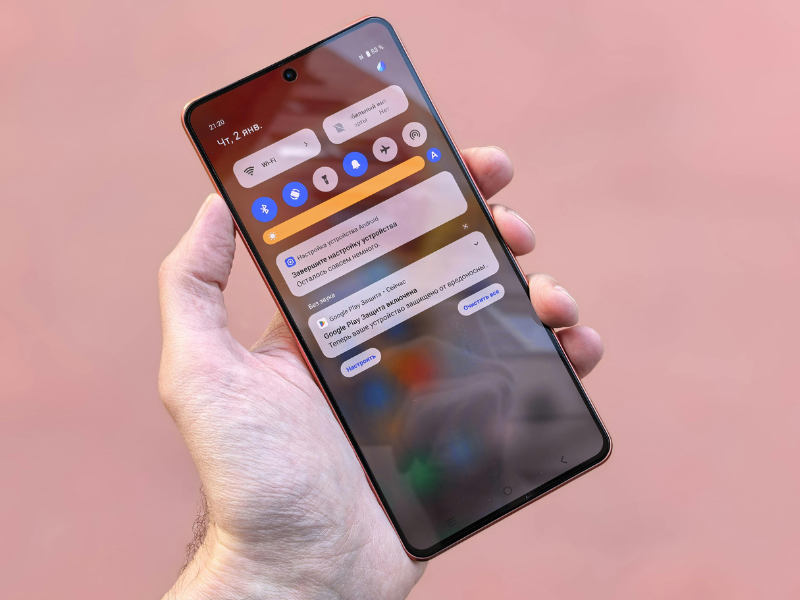
Insert image after this section:
Android Wi-Fi settings screen
6. Enable Built-In Android Security Features
Android includes powerful protection tools.
Features to enable
- Google Play Protect
- Find My Device
- App scanning
These tools quietly protect your phone in the background.

Protecting Your Online Accounts on Android
7. Use Unique Passwords for Every Account
Reusing passwords is one of the biggest security mistakes.
Tips
- Use a password manager
- Create long passphrases
- Avoid personal details

8. Turn On Two-Step Verification
Extra verification protects your accounts even if passwords leak.
Enable it for
- Email accounts
- Social media
- Cloud storage
- Banking apps
Advanced Mobile Cyber Security Tips for 2026
9. Monitor App Behavior
Watch for warning signs:
- Sudden battery drain
- Unexpected ads
- Data usage spikes
Remove suspicious apps immediately.
10. Backup Your Data Securely
Backups protect you from ransomware and phone loss.
Backup checklist
- Enable cloud backup
- Encrypt local backups
- Test restore once
Common Cyber Security Mistakes to Avoid
- Ignoring permission warnings
- Clicking unknown links in messages
- Sharing OTP codes
- Using outdated Android versions
- Trusting fake security alerts
Being cautious is more effective than installing many security apps.
FAQ: Cyber Security for Android Users
Is Android safe in 2026?
Yes, Android is safe if you keep it updated and follow basic cybersecurity tips.
Do I need antivirus apps on Android?
For most users, built-in Android security is enough if used correctly.
Can public Wi-Fi steal my data?
Yes, unsecured networks can expose your information.
How often should I review app permissions?
At least once every month.
What should I do if my phone is hacked?
Disconnect the internet, remove suspicious apps, change passwords, and reset if needed.
Conclusion
Cyber threats will continue to grow in 2026, but so will Android’s security tools. The real difference comes from how users behave. By following these cybersecurity tips in 2026, you can protect your digital life online without stress or technical confusion.
Final practical suggestion:
Once a month, spend five minutes reviewing updates, permissions, and security settings. That small habit can prevent major problems later.